

Index
- Usecase
- How to changing your Password
- How to take a course
- Overview Interface
- Main menu interface
Usecase
How to Change Your Password
Password changes cannot be made directly within the LMS.
Each system (LMS, DMS, and Q&A) manages accounts separately from the OneSystem Portal.
If you are logged in, please log out first, then:
- Go to the login screen.
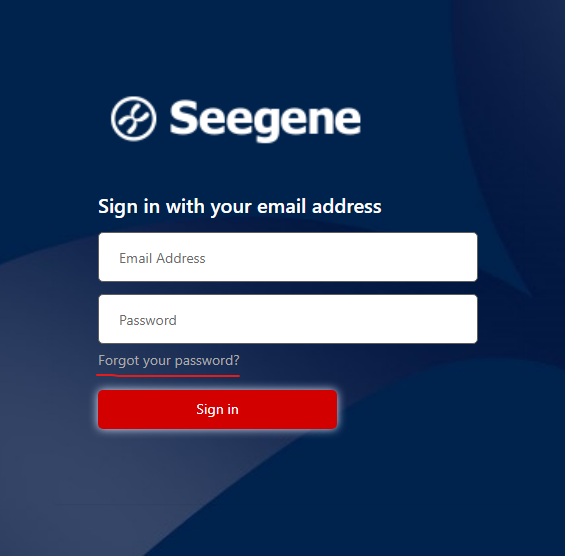
- Click “Forgot your password?” to reset it.
- Follow the instructions sent to your registered email.
Please refer to the screenshot below for the “Forgot your password?” location.
How to take a course
1. Access the LMS
Go to the LMS website: https://learning.seegenetech.com/
Log in with your registered email and password.
If you do not have an account, please contact your Admin for access.
2. Find a Course
After logging in, you will see the Dashboard or My Courses page.
- Click “Available Courses” or “Course Categories” to browse the list of available courses.
- Choose the course you want to take and click the course title to enter.
3. Start Learning
Inside the course page:
- Follow the learning steps in order (e.g., video lessons, reading materials, or quizzes).
- Click “Mark as Done” or “Complete Activity” after finishing each section.
Some courses may require you to pass a quiz before moving to the next step.
4. Check Your Progress
You can track your progress on the right-hand progress bar or under Course Completion Status.
Courses you complete will automatically appear as “Completed” in your dashboard.
Overview Interface
Main menu interface
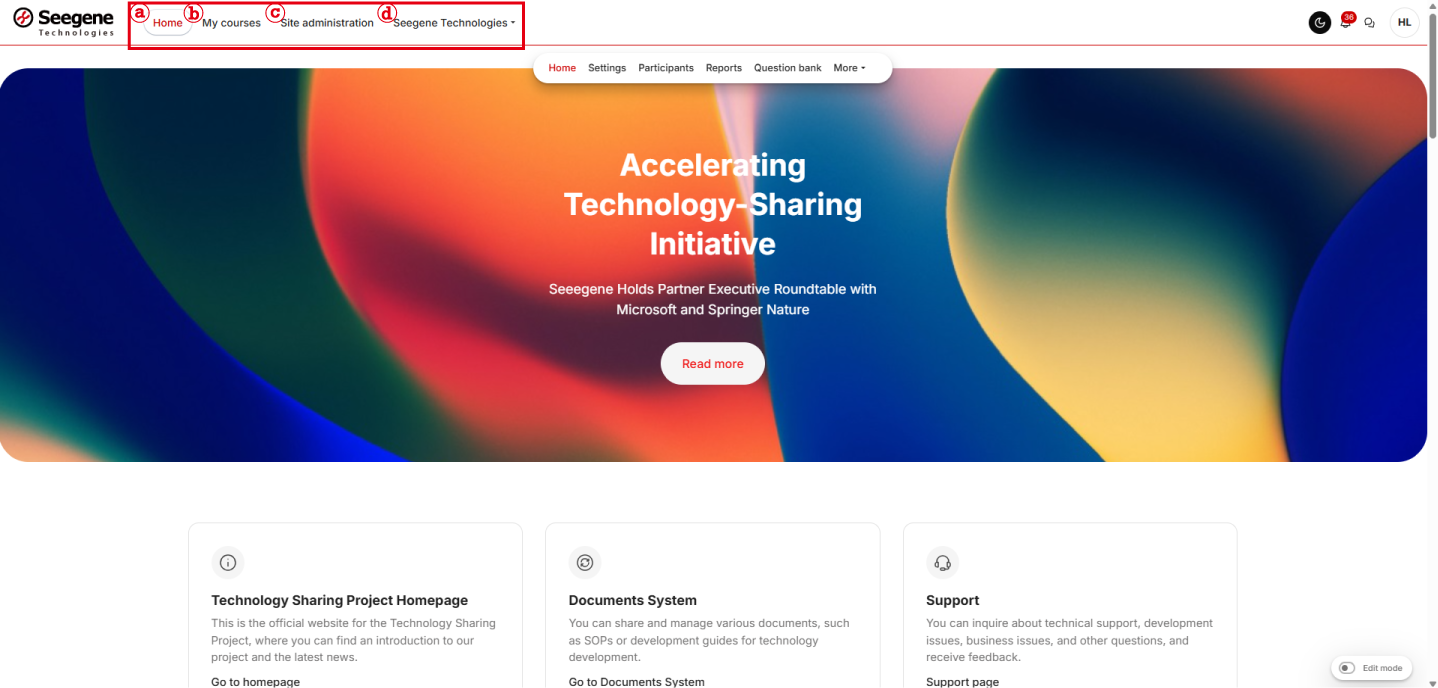
- ⓐ Home Button: Takes you to the main page of the LMS.
- ⓑ My Courses: Displays the list of courses you are currently taking or enrolled to take.
- ⓒ Site Administration: This button is visible only to Admin users.
It allows administrators to manage users and settings. - ⓓ Seegene Technologies:
Provides quick access to DMS, Q&A, and the main homepage.