

Index
- Usecase
- How to access LabIDE
- How to changing your Password
- How to changing your permission
- Overview of the User Interface
- Main menu interface
Usecase
How to Access LabIDE
- You can directly access LabIDE by entering the following URL:
👉 https://labide.sgonesystem.com - You can also access it through the OneSystem Portal:
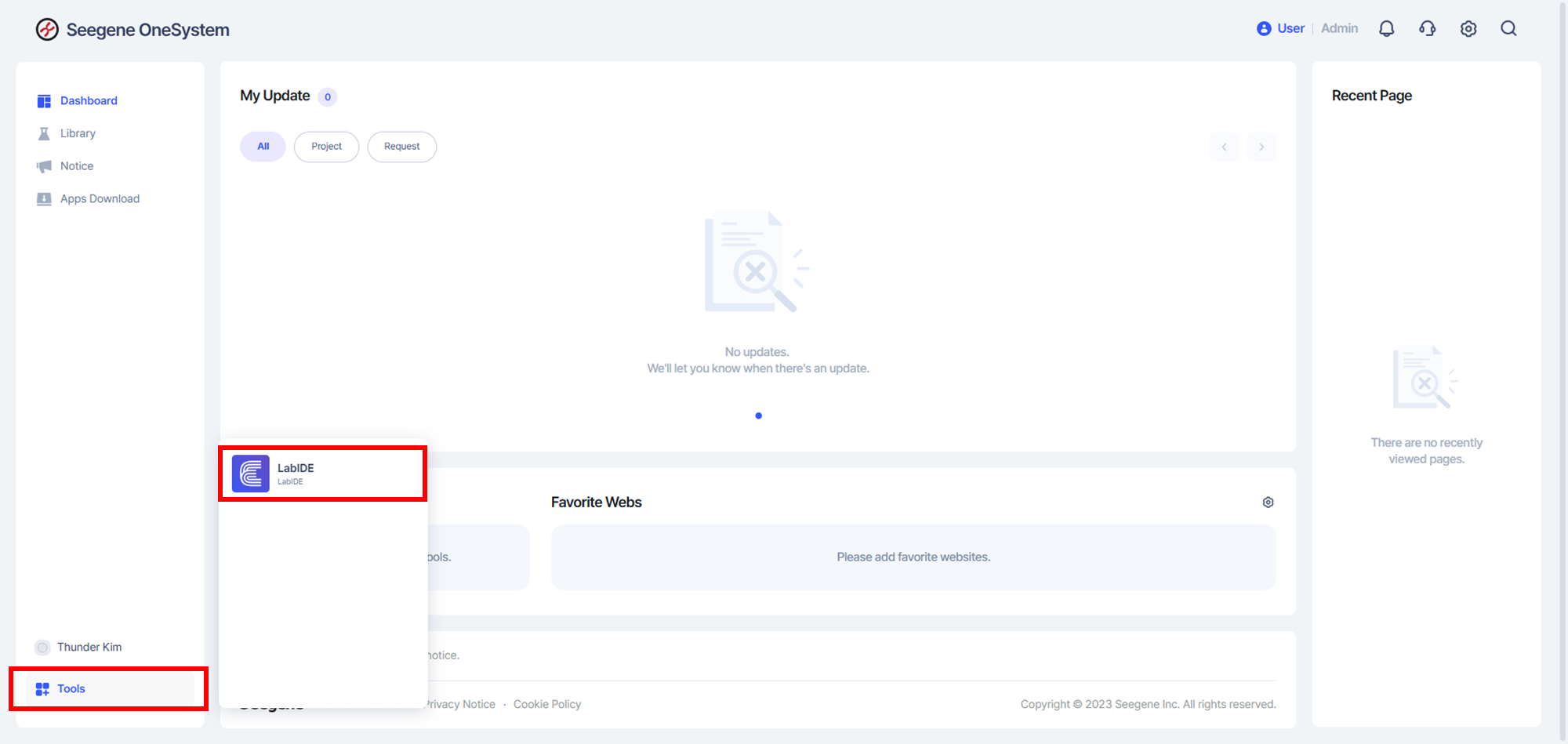
- Go to the bottom-left menu → Tools → LabIDE, and click.
How to Change Your Password
- Go to User → Bottom-left corner → Click your name → My Page.
(If you are a regular User, this option may not appear. It is only available for Admins.)
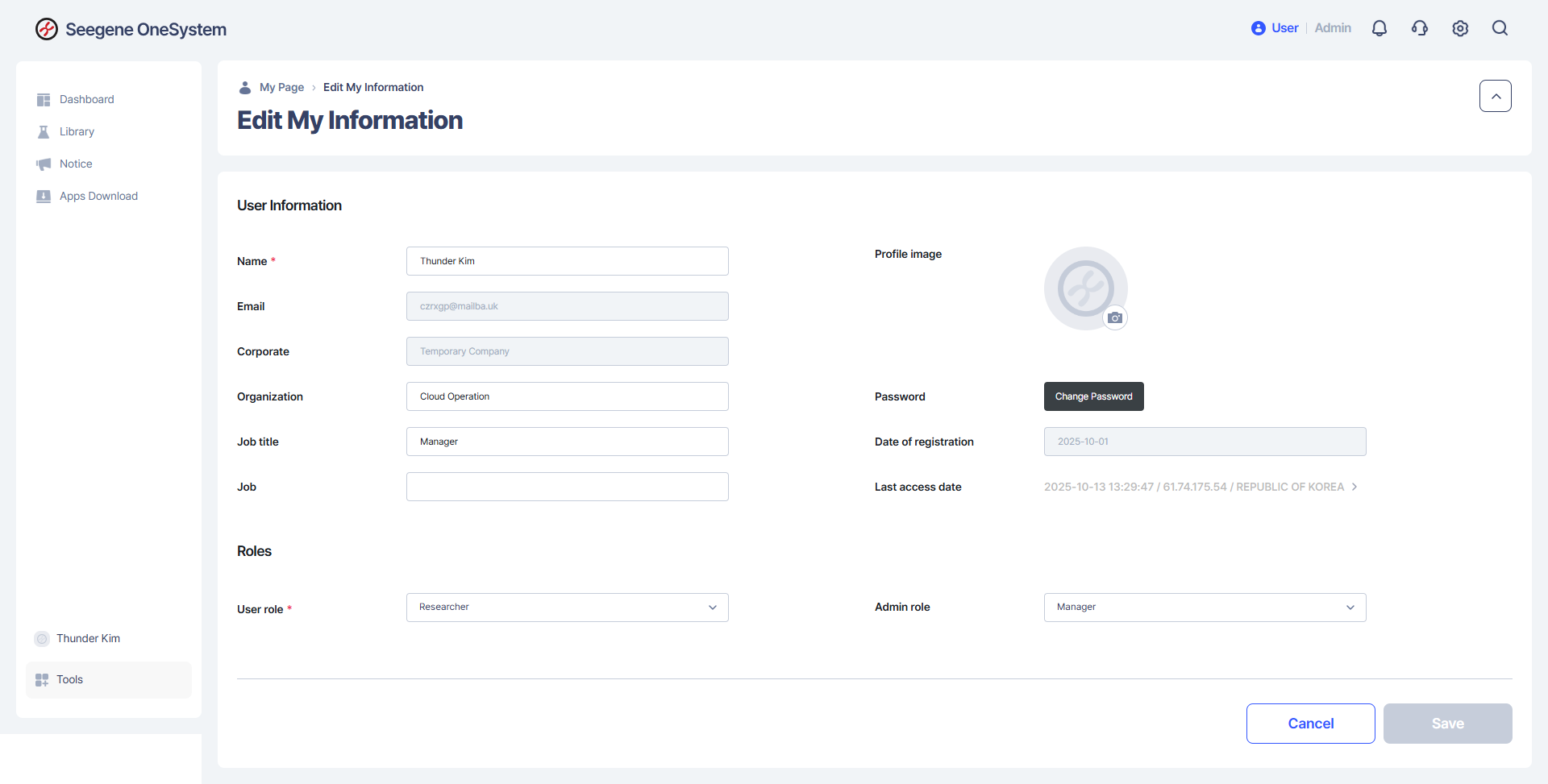
- In the Password field, click Change Password.
How to Change Your Permissions
- Go to User → Bottom-left corner → Click your name → My Page.
(If you are a regular User, step ① may not appear as it is available only for Admins.)
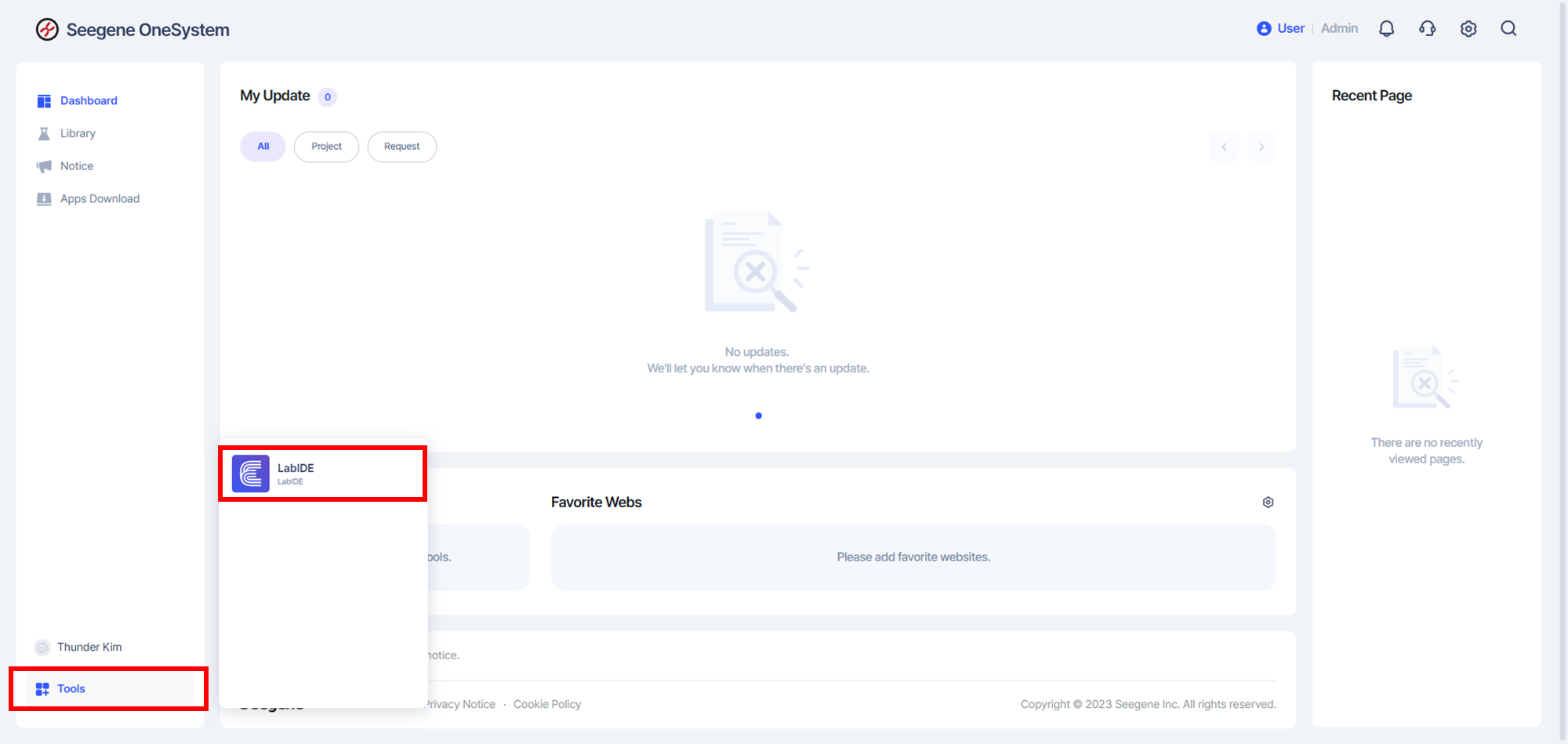
- In the Role section, you can request changes to your User Role or Admin Role.
- After submitting your request, the Corporate Admin will review and approve it. Once approved, the new permissions will be applied.
Overview of the User Interface
Main Menu Interface
The main menu is located at the top right corner of the screen.
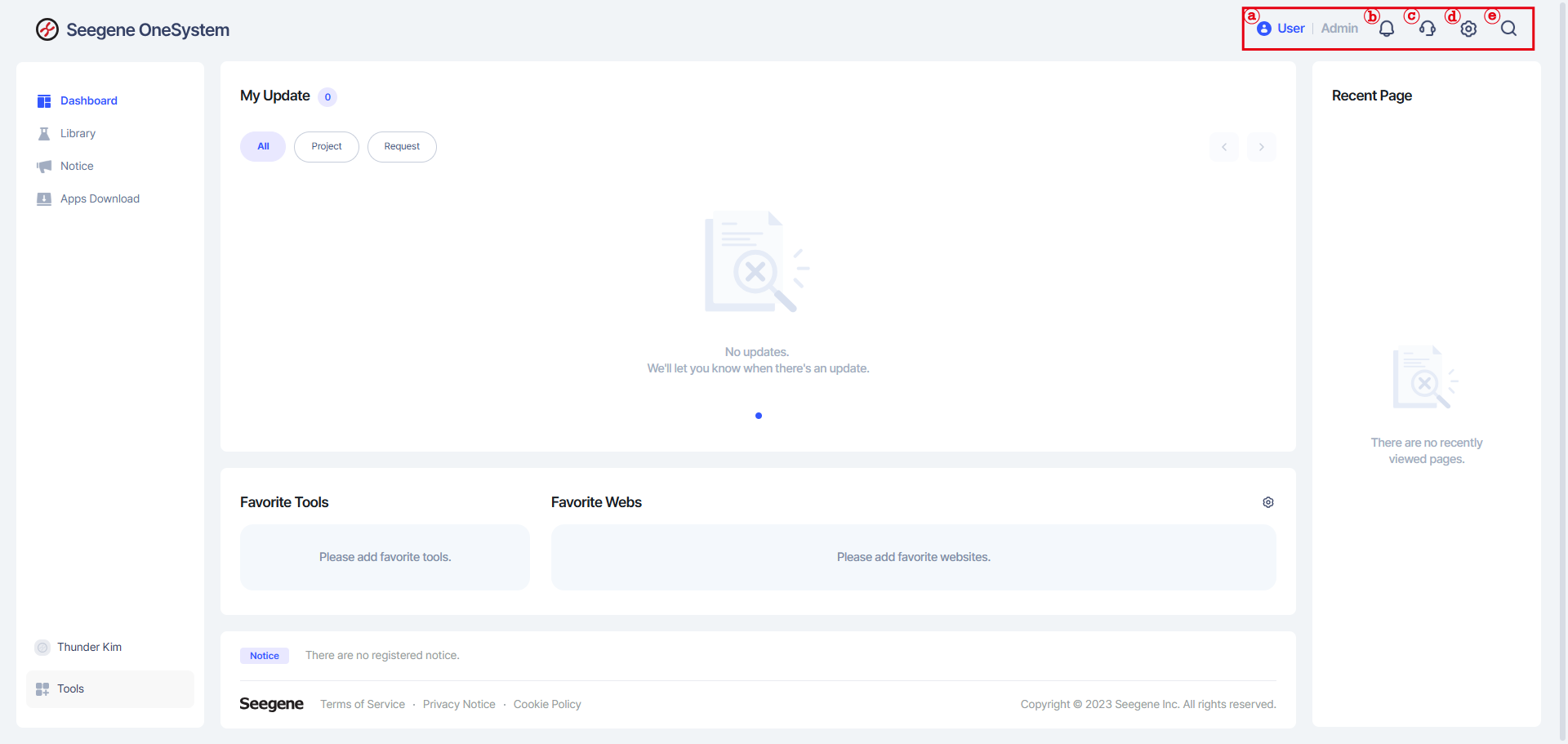
- ⓐ Admin Button
This button is available only if you have Admin privileges.
It allows you to switch between User and Admin pages. - ⓑ Notification Icon
You will receive notifications when new permissions are granted or when new issues occur. - ⓒ Inquiry Icon
This icon allows you to submit questions and receive answers regarding the service.
However, this function is not currently in operation.
For any inquiries, please use the Q&A channel below:
👉 https://service.seegenetech.com/ - ⓓ Settings Icon
You can review the Terms of Service and update your basic settings such as language preferences and notification options. - ⓔ Search Icon
You can conveniently search for software tools and documents using this icon.
Left Menu Notice
The menus on the left side are currently inactive.
They will gradually become available as additional software modules are introduced in the future.
Thank you for your continued interest and support in the OneSystem Portal.